
AI Summaries
After a meeting is transcribed, Murmur can generate an AI-powered summary. This is optional — the transcript is always available on its own. Summaries require an AI provider to be configured in Settings > AI Providers.
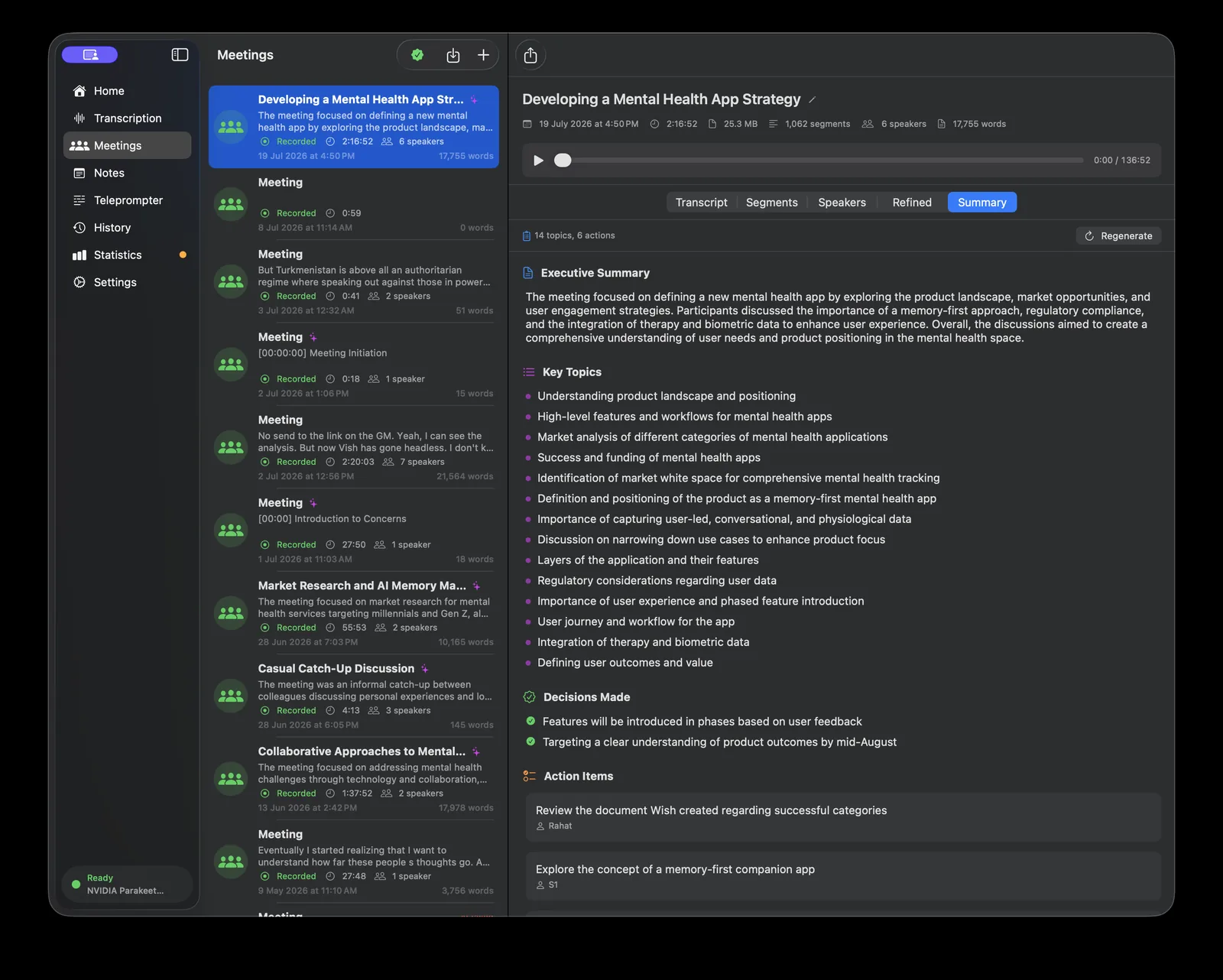
A real summary of a two-hour, six-speaker meeting.
What a summary includes
A generated summary is a structured brief, not a single block of text. Every summary includes these core sections:
- Executive summary — a short paragraph capturing the main purpose and outcome of the meeting.
- Key topics — a bulleted list of the most important things discussed.
- Decisions made — the concrete decisions reached during the meeting.
- Action items — specific tasks, each with an owner and deadline where one was mentioned.
When the conversation supports them, Murmur also adds these sections:
- Timeline — a chronological walk through the major topic shifts, each with an approximate
HH:MM:SStimestamp. - Key quotes — notable things that were said, attributed to a speaker where identifiable, with brief context.
- Open questions — questions that were raised but left unresolved.
- Sentiment — a one-line read on the meeting's tone and energy.
- Follow-up — a suggested next step when the meeting warrants one.
Murmur can also auto-generate a title for the meeting from the transcript (see Automatic options below).
You can generate a summary from the meeting detail view by clicking Generate Summary. Summaries can be regenerated at any time if the transcript changes.
Structured summaries (with topics, decisions, timeline, quotes, and more) arrived in Murmur 1.5.
Long meetings
(New in 1.6) Long meetings are summarized in pieces and then combined, so a multi-hour recording produces a complete summary rather than one that trails off partway through — the timeline, action items, decisions, and quotes cover the whole meeting, not just the beginning. This path is also faster and lighter, especially with a local model. It happens automatically; you don't need to configure anything.
Transcript refinement
Before or alongside generating a summary, you can ask Murmur to refine the raw transcript. Refinement applies the following cleanup passes:
- Punctuation cleanup — adds or corrects sentence-ending punctuation and capitalization.
- Filler removal — strips common filler words ("um," "uh," "like," etc.) to produce a cleaner read.
- Formatting — groups related sentences into logical paragraphs.
Refinement is optional and non-destructive. The original raw transcript is preserved and you can switch between the refined and original versions.
Automatic options
Three settings control what is included automatically:
- Auto-generate titles (on by default) — when you leave the meeting title blank, Murmur generates one from the transcript content after processing.
- Include timestamps (on by default) — each speaker turn in the transcript includes a timestamp showing when it occurred.
- Include speaker info (on by default) — speaker labels are included in the summary and transcript. Turn this off if you recorded a solo session or want a cleaner single-voice transcript.
You can change all of these in Settings > Meetings.
AI provider setup
Summaries and transcript refinement require a language model. Murmur supports three options:
- OpenAI — requires an OpenAI API key. Uses GPT-4o by default. Best overall quality.
- Ollama — runs locally on your Mac. No API key needed, no data sent anywhere. Quality depends on the Ollama model you have installed.
- Cloudflare AI Gateway — requires a Cloudflare account and API token. Routes through Cloudflare's AI infrastructure.
Configure your preferred provider in Settings > AI Providers. If no provider is configured, the summary and refinement options will be greyed out in the meeting view.
Your transcript is sent to whichever AI provider you have configured. If privacy is a concern, use Ollama — it runs entirely locally and nothing leaves your machine.