
AI Providers
Murmur can send transcribed text to an AI model for cleanup — fixing punctuation, removing filler words, and adapting tone to your current context through workflows. This feature is off by default. To enable it, you need at least one AI provider configured.
Configure providers in Settings > AI Providers.
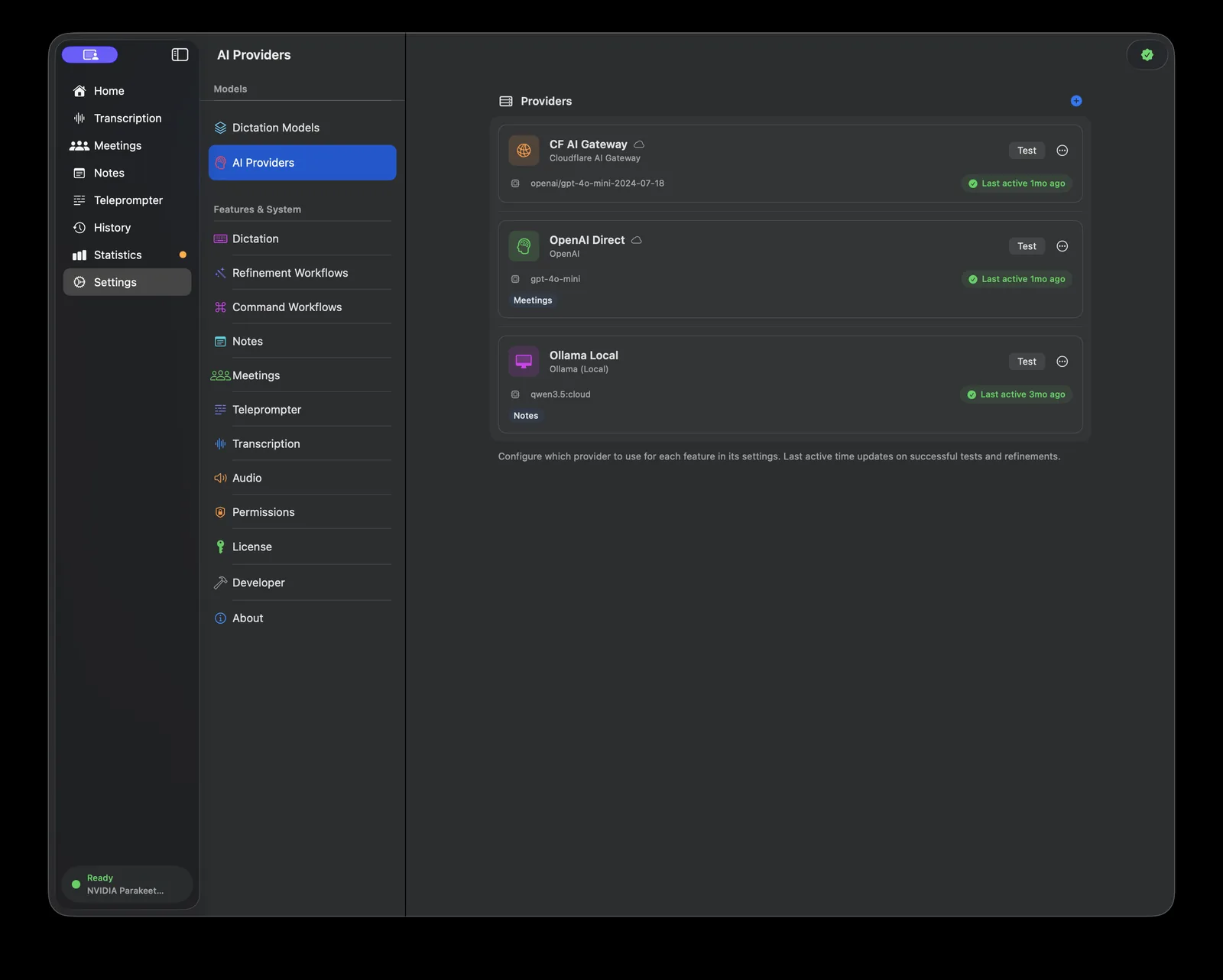
Provider types
Ollama (local)
Ollama runs AI models locally on your Mac. No API key is needed and no data leaves your machine. This is the most private option.
- Murmur auto-discovers models you have already pulled in Ollama
- Endpoint defaults to
http://localhost:11434 - Requires Ollama to be running — install it from ollama.com
Performance depends on your Mac's available memory. Models like llama3 or mistral run well on 16 GB systems.
OpenAI
Uses the OpenAI API with your own key. Supports GPT-4o, GPT-4o mini, and other chat models.
- Requires an OpenAI API key from platform.openai.com
- Key is stored in your macOS Keychain — never in plain text
- Endpoint:
https://api.openai.com/v1(set automatically)
OpenAI-compatible APIs
Any API that follows the OpenAI chat completions format works. This includes self-hosted inference servers, Groq, Together AI, and others.
- Enter a custom endpoint URL, model name, and API key
- Useful if you have access to specific models not available through OpenAI directly
Cloudflare AI Gateway
Routes requests through your Cloudflare AI Gateway, which provides logging, caching, and rate limiting on top of any underlying model.
- Requires a Cloudflare account ID, gateway ID, and API key
- Supports multiple model providers behind a single gateway endpoint — OpenAI, Anthropic, Google AI Studio, Azure OpenAI, Workers AI, Groq, Cohere, Mistral, and Perplexity
- Two request formats: Unified API (model names like
openai/gpt-4o-mini) or Provider-Specific (plain model names likegpt-4o-mini) - Two authentication modes: Stored Keys (your provider keys live in the gateway; Murmur sends only your Cloudflare token) or Key in Request (Murmur sends the provider key with each call)
Adding a provider
- Open Settings > AI Providers and click Add Provider.
- Select the provider type from the list.
- Enter the required fields: name, endpoint, model, and API key where applicable.
- Click Test Connection to verify the settings work before saving.
- Click Save.
You can add multiple providers and switch between them per feature.
Per-feature provider selection
Dictation refinement, notes refinement, and meeting summaries can each use a different provider. For example, you might use a fast local Ollama model for inline dictation cleanup and a more capable OpenAI model for meeting summaries.
Notes and Meetings each have an AI Refinement section in their settings (Settings > Notes, Settings > Meetings) with a Primary Provider, an optional Fallback Provider ("Used when primary is slow or unreachable"), and a fallback timeout of 3–20 seconds. Dictation refinement is configured through workflows in Settings > Refinement Workflows.
The first provider you add is automatically assigned as the default for dictation, notes, and meetings.
Security
All API keys are stored in the macOS Keychain. They are never written to disk in plain text, logged, or transmitted anywhere other than the configured provider endpoint.